Getting Apple CarPlay working in your car is usually straightforward, but the process varies depending on whether your vehicle uses a wired or wireless connection, and whether your iPhone and head unit are properly configured.
To set up CarPlay, plug your iPhone into your car’s USB port using an Apple-certified Lightning or USB-C cable, or enable Bluetooth and Wi-Fi for wireless CarPlay. On your iPhone, go to Settings > General > CarPlay, select your car, and follow the on-screen prompts. Your head unit must support CarPlay, and Siri must be enabled on your iPhone for the system to function.
Does Your Car Actually Support CarPlay?
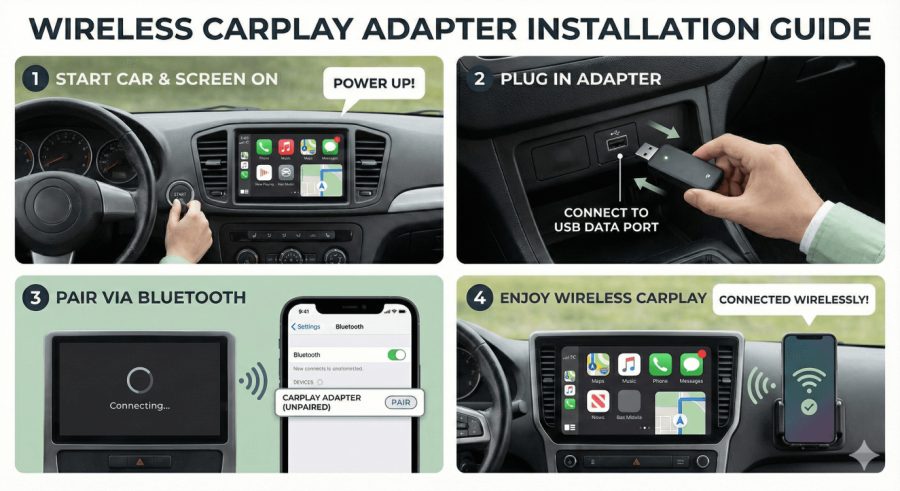
Before troubleshooting or setting anything up, confirm your vehicle is CarPlay-compatible. Apple CarPlay has been available as either standard or optional equipment on many vehicles since the 2015 model year, but not every trim level includes it.
- Check these sources to confirm compatibility:
- Your vehicle’s window sticker or original order sheet
- The owner’s manual under infotainment or connectivity sections
- Apple’s official CarPlay-compatible vehicles list at apple.com/ios/carplay/available-models
- Your dealership’s trim comparison page
Many vehicles offer CarPlay on mid-level trims and above, while base trims use a simpler audio system without smartphone integration. If your factory system doesn’t support CarPlay, aftermarket head units from brands like Pioneer, Kenwood, and Sony can add compatibility to most vehicles.
iPhone Requirements You Need to Meet First
CarPlay requires an iPhone 5 or later running iOS 7.1 or newer, though in practice, most current CarPlay features work best on iPhone XS or later running iOS 16 or newer. Older iPhones may connect but won’t support newer CarPlay features like updated maps or instrument cluster integration.
There are two settings on your iPhone that must be active before CarPlay will work:
- Siri must be enabled. Go to Settings > Siri & Search and make sure “Listen for ‘Hey Siri'” or “Press Side Button for Siri” is turned on.
- CarPlay must not be restricted. Go to Settings > Screen Time > Content & Privacy Restrictions > Allowed Apps. Make sure CarPlay is toggled on. This is a commonly overlooked issue when CarPlay fails to appear.
Setting Up Wired CarPlay (Most Common Method)
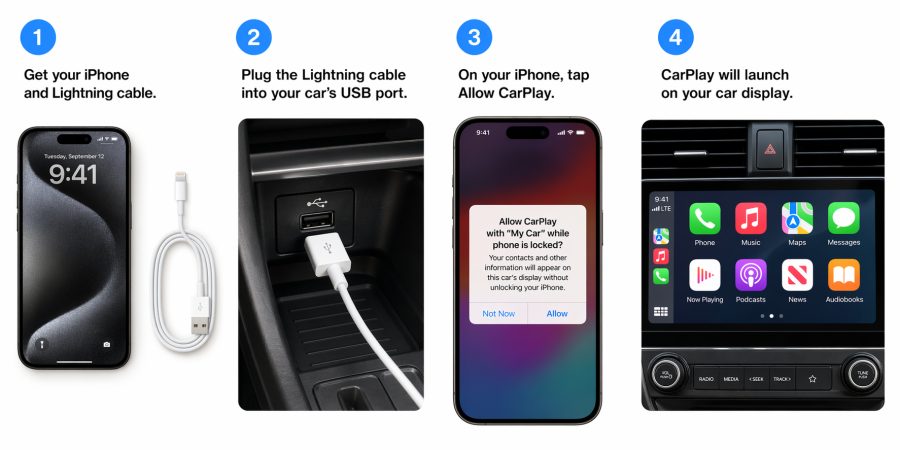
Wired CarPlay is available on virtually every CarPlay-compatible vehicle. This method uses a direct USB connection and tends to be more reliable than wireless, especially for charging your phone simultaneously.
Step-by-step wired setup:
- Start your vehicle and make sure the infotainment system is powered on.
- Use an Apple-certified Lightning or USB-C cable — a damaged or cheap third-party cable is a frequent cause of failed connections.
- Plug the cable into the correct USB port. Many vehicles have multiple USB ports, but only one (sometimes labeled with a smartphone icon or “CarPlay”) supports data and CarPlay. Check your owner’s manual for the correct port.
- Unlock your iPhone before or immediately after plugging in.
- A CarPlay prompt should appear on your iPhone screen. Tap “Allow” if asked.
- Your head unit should automatically switch to CarPlay mode, or prompt you to select it from the source menu.
- If this is your first connection, your car may ask you to confirm pairing on the infotainment screen.
Once connected, CarPlay launches automatically on future connections when the car detects the same iPhone.
Setting Up Wireless CarPlay
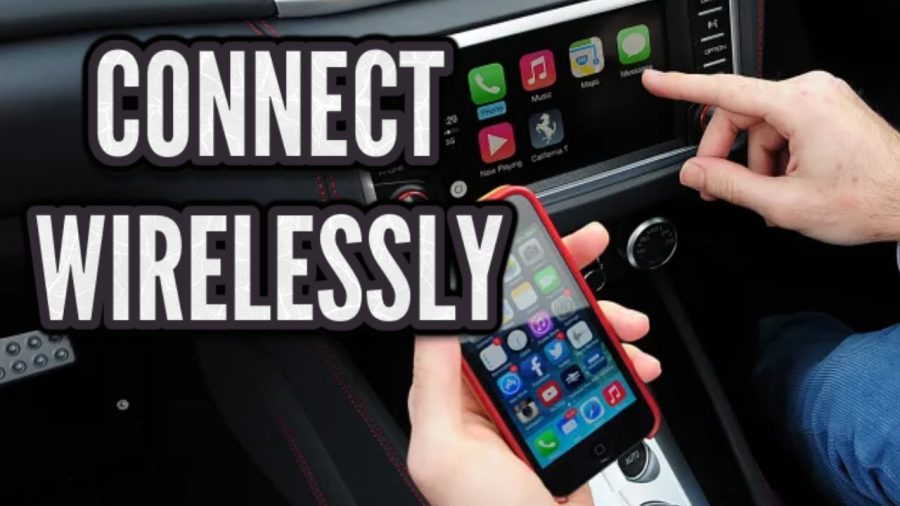
Wireless CarPlay eliminates the cable entirely, connecting over Wi-Fi and Bluetooth simultaneously. It’s available on many 2018 and newer vehicles, though some earlier models support it as well. Your iPhone must be iPhone XR or newer (iOS 14 or later recommended) to use wireless CarPlay reliably.
Step-by-step wireless setup:
- Enable Bluetooth on your iPhone. Go to Settings > Bluetooth and make sure it’s toggled on.
- On your car’s infotainment screen, navigate to the wireless CarPlay or Bluetooth pairing menu. The exact path varies by manufacturer — look for Settings > Connections > Wireless CarPlay or similar.
- Select your vehicle from the list of available Bluetooth devices on your iPhone, or follow the head unit’s on-screen pairing prompt.
- Accept the Bluetooth pairing request on both devices.
- Once Bluetooth pairs, the system automatically negotiates the Wi-Fi connection for CarPlay data. You don’t need to manually connect to any Wi-Fi network.
- CarPlay should launch on the infotainment screen within a few seconds.
After initial setup, wireless CarPlay connects automatically when you start your car with your iPhone nearby, as long as Bluetooth is enabled.
Adjusting CarPlay Settings on Your iPhone
Once CarPlay is connected, you can customize which apps appear on the CarPlay home screen directly from your iPhone.
- Go to Settings > General > CarPlay
- Select your vehicle from the “My Cars” list
- Tap Customize to rearrange, add, or remove apps from the CarPlay interface
Not every iPhone app works with CarPlay. Apple limits CarPlay to specific categories: navigation, audio, messaging, communication, and a small number of third-party apps designed specifically for in-car use. If an app isn’t appearing in CarPlay, it either hasn’t been optimized for CarPlay by its developer or has been disabled from your customization list.
Common CarPlay Problems and What Causes Them
Even after a clean setup, CarPlay can fail or behave inconsistently. Most issues fall into a few predictable categories.
- CarPlay doesn’t appear when phone is plugged in:
- Wrong USB port — verify you’re using the data-capable port
- Damaged cable — test with a known-good Apple-certified cable
- Siri is disabled — CarPlay won’t launch without Siri enabled
- iPhone is locked — always unlock before or immediately after connecting
- Wireless CarPlay keeps disconnecting:
- Bluetooth interference from other paired devices
- iPhone’s background app refresh being limited by battery saver mode
- Outdated iOS or infotainment firmware — check for software updates on both devices
- CarPlay connects but apps are missing:
- App hasn’t been updated to support CarPlay by its developer
- App was removed from the CarPlay home screen in Settings > General > CarPlay > Customize
- Head unit shows CarPlay for a moment, then reverts to regular audio:
- A common issue with loose or partially damaged USB cables
- Some aftermarket or counterfeit cables don’t support data transfer reliably
- iPhone asks “Trust This Computer?” repeatedly:
- Tap “Trust” and keep the iPhone unlocked during the process
- If the prompt appears every time you connect, reset location and privacy settings on your iPhone under Settings > General > Transfer or Reset iPhone > Reset > Reset Location & Privacy
Wireless vs. Wired CarPlay: Which Works Better?
| Feature | Wired CarPlay | Wireless CarPlay |
|---|---|---|
| Connection reliability | Generally more stable | Occasional dropouts in some vehicles |
| Phone charging | Yes, charges while in use | No — requires separate charger |
| Setup speed | Instant after first pairing | Slightly longer initial setup |
| Vehicle compatibility | Available on all CarPlay vehicles | Requires compatible head unit |
| iPhone requirement | iPhone 5 or later | iPhone XR or later |
| Latency | Minimal | Slightly higher in some systems |
In practice, wired CarPlay is often the better choice for long drives or navigation-heavy use since it keeps your phone charged. Wireless CarPlay is more convenient for short trips or commuters who prefer a clean dash without cables.
Updating Your Head Unit for Better CarPlay Performance
If CarPlay is dropping out, running slowly, or missing features, an outdated infotainment system can be the cause. Many automakers release software updates that improve CarPlay stability and add support for newer iPhone features.
- Check for updates through:
- Your vehicle’s infotainment settings menu (Settings > System > Software Update)
- Your dealership, who can perform over-the-air or USB-based updates
- The manufacturer’s owner portal or app (Ford, GM, Toyota, Honda, and others offer these)
Some updates must be performed at a dealership, while others can be downloaded via USB drive from the manufacturer’s website and installed yourself. Always verify the exact update procedure in your owner’s manual before attempting a self-install.
FAQ
Does CarPlay work on Android phones?
No. CarPlay is an Apple-exclusive system that works only with iPhones. Android users should look for Android Auto compatibility instead, which is a separate system supported by many of the same vehicles that offer CarPlay. Most new vehicles with CarPlay also support Android Auto on the same or separate USB port.
Why does my CarPlay keep disconnecting on its own?
Disconnections are most often caused by a faulty USB cable, a loose USB port, or Bluetooth interference in wireless setups. Try a different Apple-certified cable first. For wireless CarPlay, check that other Bluetooth devices aren’t competing for priority. Also confirm your iPhone isn’t dropping into Low Power Mode, which can interrupt wireless connections.
Can I add CarPlay to my car if it didn’t come with it from the factory?
Yes. Aftermarket head units from Pioneer, Kenwood, Sony, and Alpine offer CarPlay compatibility and can be installed in most vehicles. Professional installation is recommended since it involves wiring integration and often requires factory connector adapters. Some vehicles may also have dealer-installed CarPlay activation options through a software unlock.
Does CarPlay work without an internet connection?
Basic CarPlay functions work without cellular data, including music playback from locally stored content and certain navigation features. However, real-time traffic updates, Apple Maps turn-by-turn routing from online data, and streaming services all require an active cellular connection on your iPhone. CarPlay itself doesn’t use the car’s Wi-Fi — it uses your phone’s data plan.
Why is my CarPlay screen not showing the full iPhone interface?
CarPlay is intentionally limited to a curated set of apps to reduce driver distraction. Not every iPhone app is available in CarPlay. Developers must specifically build CarPlay support into their apps, and Apple approves only certain app categories — navigation, audio, messaging, and select others. This is by design, not a malfunction.
Will CarPlay work if my iPhone has a cracked screen or is in a case?
A cracked screen doesn’t affect CarPlay functionality as long as the touch screen still responds and the Lightning or USB-C port is undamaged. Most phone cases don’t interfere with CarPlay either, though overly thick cases can make plugging in a cable difficult. A right-angle Lightning or USB-C adapter can help in tight situations.
Does using CarPlay drain my iPhone battery faster?
Wired CarPlay typically charges your phone simultaneously, so battery drain isn’t a concern. Wireless CarPlay, however, uses both Bluetooth and Wi-Fi constantly, which does consume battery more rapidly than standby. If you’re using wireless CarPlay on longer trips, plug your phone into a separate charging cable or wireless charger to avoid arriving with a depleted battery.
CarPlay setup takes just a few minutes once you confirm that your vehicle, iPhone, and cable all meet the basic requirements. The most common roadblocks — a wrong USB port, a disabled Siri, or a cheap cable — are all easy to check and fix without any technical knowledge. If wireless CarPlay is available in your vehicle, taking the time to pair it properly pays off every time you get in the car.