Android Auto head units and aftermarket displays often list an SD card slot as a feature — but the reason isn’t always obvious if you’re coming from a smartphone background.
Most Android Auto displays need an SD card slot to store the operating system, offline maps, media files, and app data that the unit cannot hold in its limited built-in storage. Without an SD card, many standalone Android Auto head units can’t function at all, or they severely restrict what you can store and access locally. Some displays use the SD card strictly for firmware updates or map data, while others depend on it for core system operation.
The answer depends on whether the display is a standalone Android-powered head unit or a simple pass-through display that relies entirely on your connected phone.
Two Very Different Types of “Android Auto Displays”
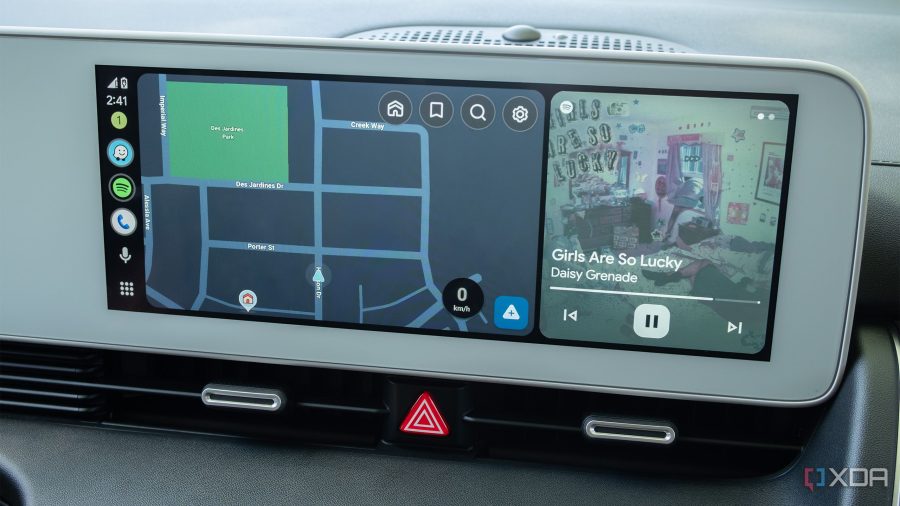
The term “Android Auto display” gets used loosely, and the distinction matters significantly when discussing SD card requirements.
Pass-through Android Auto displays (often called “wired” or “wireless” Android Auto receivers) are head units that project your phone’s Android Auto interface onto the screen. The phone does all the processing. These units typically do not need an SD card for Android Auto to function, though some may still include an SD slot for audio playback or firmware updates.
Standalone Android-powered head units are a completely different product. These run a full Android operating system directly on the unit — often Android 10, 11, or 12 — and support Android Auto through a separate layer. These absolutely depend on an SD card (or sufficient built-in internal storage) to operate properly. Without extra storage, there’s nowhere to install apps, store map data, or hold the OS correctly.
When someone asks why their display needs an SD card, they’re almost always dealing with a standalone Android head unit.
What the SD Card Actually Stores on These Units
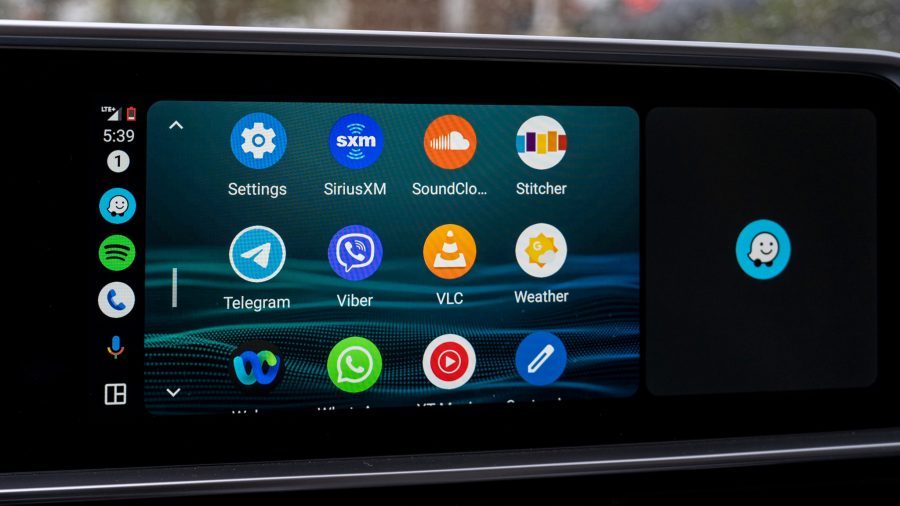
On a standalone Android car display, the SD card carries a surprising amount of critical data. Understanding what’s stored there explains why so many manufacturers make the card a requirement rather than an optional accessory.
Operating system files and system data. Many budget and mid-range standalone head units ship with 16GB to 32GB of internal storage, which is just enough for the base Android OS. System updates, cached processes, and background app data quickly eat into that space. The SD card effectively extends the system’s working room.
Offline navigation maps. Apps like Google Maps, Waze, and Sygic allow users to download map regions for offline use. A single country’s map package can easily consume 1GB to 3GB of storage. Without an SD card, there’s often no practical space to hold these downloads, leaving you dependent on a cellular connection for navigation.
Media libraries. Drivers who store local music files, podcasts, or audiobooks on the head unit need somewhere to keep those files. The SD card serves as a removable media library, which is especially useful for long trips in areas with poor connectivity.
Firmware and software updates. Manufacturers often distribute firmware update packages via SD card. Even on pass-through Android Auto receivers, the SD card slot exists partly so the installer or owner can push a system update without needing a laptop or dealership visit.
Why Built-In Storage Alone Isn’t Usually Enough
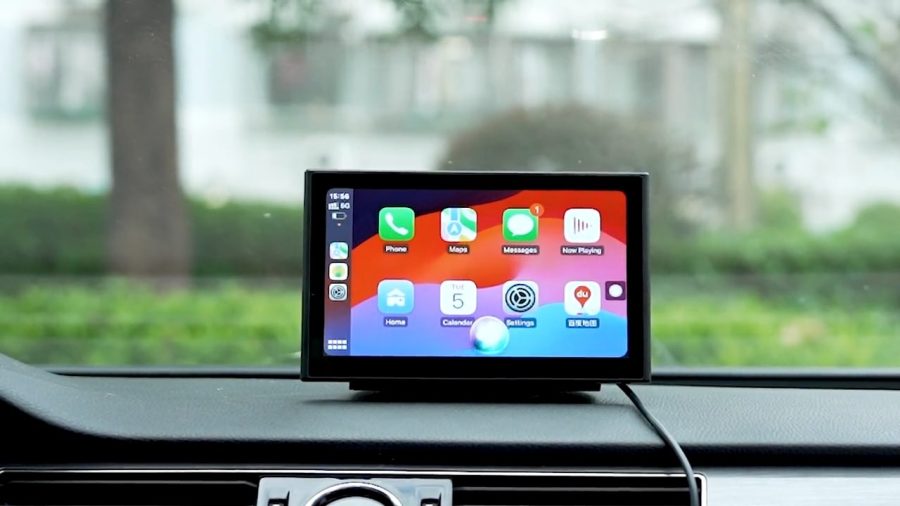
A common question is: if the unit has built-in storage, why does it still need an SD card?
The reality is that most aftermarket head units — particularly those sold in the $150 to $400 price range — use eMMC flash storage that’s adequate for booting the OS but not much else. Android itself, with Google Play Services and basic apps, consumes 8GB to 12GB on its own. Add Google Maps with offline data, a music app, and a few Android Auto companion apps, and a 16GB internal drive is nearly full before you’ve personalized anything.
Manufacturers address this by providing an SD card slot and recommending a 32GB, 64GB, or 128GB card to serve as expanded storage. On many units, you can configure Android to use the SD card as “adopted storage,” which treats it as a seamless extension of the internal system.
Without that card, some units display storage warnings constantly, struggle to cache navigation data, or outright refuse to install additional apps.
SD Card Slot Use Cases at a Glance
| Use Case | Pass-Through Android Auto Display | Standalone Android Head Unit |
|---|---|---|
| OS and system files | Not required | Often required |
| Offline map storage | Not required | Strongly recommended |
| Music and media files | Common use | Common use |
| Firmware updates | Common use | Common use |
| App installation | Not applicable | Sometimes required |
| Dashcam footage (built-in) | Varies by unit | Varies by unit |
Choosing the Right SD Card for Your Head Unit
Not every SD card works reliably in a car head unit, and using the wrong type is a commonly reported cause of playback errors, system crashes, or maps failing to load.
Speed class matters. Look for a card rated at least Class 10 or UHS-I (U1). If you’re storing apps or using the card as adopted storage, a UHS-I U3 or A1/A2-rated card performs noticeably better during random read/write operations — which is exactly how Android accesses app data.
Capacity should match your use. For basic media storage and firmware updates, 32GB is usually sufficient. If you plan to store offline maps for large regions plus a music library, 64GB or 128GB is a more practical choice. Verify your head unit’s maximum supported card size — some older units cap out at 32GB or 64GB.
Format compatibility. Most Android head units read exFAT or FAT32 formatting. Cards larger than 32GB typically come pre-formatted as exFAT. Check your unit’s manual for the recommended format before inserting the card.
A commonly available option that many head unit owners use is the Samsung PRO Endurance microSDXC card, which is specifically rated for continuous recording environments — useful if your head unit also handles dashcam footage.
When a Head Unit Won’t Recognize the SD Card
If your Android Auto display isn’t reading the inserted SD card, a few practical checks can identify the problem quickly.
- Wrong format: A card formatted as NTFS won’t be recognized by most head units. Reformat to FAT32 (for cards 32GB and under) or exFAT using a computer before reinserting.
- Card not fully seated: In vehicle environments, vibration can cause a card to work loose slightly. Remove and firmly reseat the card.
- Corrupted card: If the card was removed during a write operation, corruption can occur. Back up the data if possible, then reformat.
- Capacity exceeds unit limit: If your unit supports a maximum of 64GB but you’ve inserted a 128GB card, the unit may not read it at all, or only recognize part of the capacity.
- Defective card slot: A rarely discussed issue is that aftermarket head units — particularly budget models — occasionally have card slots with poor contact quality. A different card can sometimes confirm whether the slot itself is the problem.
Does Android Auto Itself Require an SD Card?
This is worth clarifying directly, because it’s a point of confusion for many buyers.
Google’s Android Auto platform itself does not require an SD card. When Android Auto runs as a projection system from your phone through a compatible receiver, the phone handles all processing and storage. The head unit is essentially a screen and speaker output in that scenario.
The SD card requirement is specific to the head unit’s own Android operating system and local storage needs — not the Android Auto protocol itself. If your head unit came with 64GB or more of built-in storage, the manufacturer may not list an SD card as required, though you may still want one for media or map storage.
Practical Setup Tips for New Head Unit Owners
Many owners overlook a few steps when setting up a new standalone Android head unit with an SD card.
First, insert the SD card before powering the unit on for the first time if the manual recommends it. Some units initialize storage partitions during first boot, and inserting the card afterward can prevent it from being recognized as system storage.
Second, if your unit allows SD card adoption (merging it into internal storage), be aware that adopting the card formats it in a way that makes it unreadable on other devices. This is fine for system storage but means you can’t easily transfer files to and from the card using a computer.
Third, keep a backup of any maps or media on a computer. SD cards in vehicle environments are exposed to heat, vibration, and electrical cycling — conditions that accelerate wear over time compared to typical consumer use.
FAQ
Can I use Android Auto without an SD card in my head unit?
It depends on the head unit type. Pass-through Android Auto receivers that project your phone’s screen don’t need an SD card to run Android Auto. Standalone Android head units may need one for storage, maps, or app data. Check whether your unit has sufficient internal storage — if it shipped with 32GB or more built-in, it may function without a card for basic use, though adding one is still recommended.
What size SD card does an Android car head unit need?
Most Android head units work well with a 64GB or 128GB SD card for everyday use. A 32GB card is the practical minimum if you only need space for basic apps and system data. If you plan to store offline maps, a music library, or dashcam footage, 128GB gives you comfortable headroom. Always confirm the maximum supported card size in your unit’s documentation before purchasing.
Why does my Android head unit say “SD card not supported” even with a new card?
The most common reasons are incompatible formatting (the card may need to be reformatted to FAT32 or exFAT), a card capacity that exceeds the unit’s supported maximum, or a defective card slot. Try reformatting the card on a computer first. If the problem persists with multiple cards, the card slot itself may have a hardware issue.
Can I store Google Maps offline data on the SD card in my car’s Android head unit?
Yes, most standalone Android head units allow you to redirect app storage, including Google Maps offline map downloads, to the SD card. In Android settings, look for “Storage” and set the default storage location to the SD card, or configure individual app storage within the app’s settings. This is one of the most practical reasons to add an SD card to these units.
Will a higher-speed SD card make my Android head unit run faster?
In practice, yes — particularly for app loading and map data access. A UHS-I U3 or A2-rated card offers significantly faster random read/write speeds compared to a basic Class 10 card. For media playback alone, the difference is minimal. But if the card is being used as adopted storage for apps, the faster card translates to noticeably smoother performance during app switching and navigation.
Does adding an SD card void the warranty on my aftermarket head unit?
Adding an SD card through a manufacturer-provided slot does not void the warranty on a properly designed head unit. The SD card slot is an intended feature. However, using a card that causes software corruption or damage through improper formatting could complicate warranty claims if the issue is attributed to the card rather than the unit. Always use the card type and size specified in the manual.
What’s the difference between an SD card slot and a USB port on an Android head unit?
Both can store media files, but they serve different purposes on most units. The SD card slot is typically used for system storage expansion, map data, and firmware updates — functions that benefit from the card being permanently installed. A USB port is better suited for temporarily connected devices, phone charging, or plug-in flash drives with music. Some units allow USB storage as an alternative for media but cannot use it for system or app storage.
The SD card slot on an Android Auto display exists because standalone head units run a full Android OS on limited hardware, and they need somewhere to store maps, apps, system data, and media files that won’t fit in the unit’s built-in storage. For pass-through receivers, the SD card is optional and typically used for media or firmware updates only. Choosing the right card — with the correct format, appropriate capacity, and a fast speed class — makes a meaningful difference in how reliably and smoothly a standalone head unit operates day-to-day.