A reversed or mirrored camera image on a Lexia video monitoring system is one of the most common setup complaints owners run into — especially after initial installation or following a firmware reset.
The fix usually involves accessing the camera settings menu within the Lexia monitor’s OSD (On-Screen Display), locating the image flip or mirror option, and toggling it to the correct orientation. Depending on your specific Lexia unit and camera type, this setting may be labeled “Mirror,” “Flip H,” “Image Reverse,” or “View Adjustment.” Most adjustments take under five minutes once you locate the correct menu path.
Why the Lexia Camera Image Appears Reversed
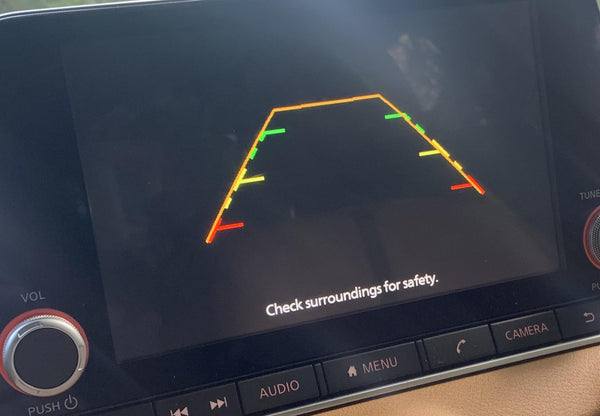
The reversed image issue typically has one of two causes: a software setting that defaults to a mirrored view, or a camera that was physically mounted in a non-standard orientation.
Rear-view and side-monitoring cameras are often designed to display a mirrored image by default — similar to how a bathroom mirror works — because it feels more intuitive when reversing or checking blind spots. However, if the camera is mounted facing a direction the firmware didn’t anticipate, that mirrored logic creates a confusing or unusable image.
Some Lexia systems also reset image settings after a firmware update or power interruption, which can cause a previously correct image to suddenly appear flipped again.
What You’ll Need Before Starting
No special tools are required for a software-based image correction. However, having the following on hand makes the process smoother:
- Your Lexia monitor and camera already powered and displaying an image
- The original Lexia user manual or a downloaded PDF version (model-specific menu paths vary)
- A short stylus or fingernail for navigating touchscreen OSD menus (on non-touch models, the physical button layout matters)
- A second person can be helpful if the camera is mounted in a hard-to-see location
If the issue is physical camera orientation rather than a software setting, you’ll also need basic hand tools — typically a Phillips screwdriver or small socket set depending on how the camera bracket is mounted.
Navigating the Lexia OSD Menu to Correct the Image
The exact menu path varies slightly by Lexia model, but the general process follows the same pattern across most units in the Lexia lineup.
Step-by-step process for software correction:
- Power on the Lexia monitor and ensure the camera feed is actively displayed on screen.
- Press the Menu button on the monitor or tap the on-screen settings icon (varies by model generation).
- Navigate to Camera Settings, Channel Settings, or Video Setup — the naming differs by unit.
- Look for an option labeled Mirror, Flip, Image Reverse, H-Flip, or View Mode.
- Toggle the setting. Most Lexia systems cycle through: Normal → Mirror → Flip → Mirror + Flip.
- Select the orientation that matches what you’re actually seeing in real-world space when looking at the camera’s physical location.
- Confirm and save the setting before exiting the menu. Some units save automatically; others require pressing a dedicated Save or OK button.
If the image is upside down rather than left-right reversed, look specifically for a V-Flip or Vertical Flip option alongside the horizontal mirror control.
When the Setting Doesn’t Stick After a Power Cycle
A commonly reported issue with some Lexia video monitoring units is that image orientation settings revert to default after the vehicle is turned off and restarted. This almost always points to one of two problems.
The first possibility is a power wiring issue — if the monitor is losing its memory power (usually a dedicated ACC or constant 12V wire), it can’t retain custom settings. Check that the memory wire is connected to a constant 12V source, not an ignition-switched circuit.
The second possibility is a firmware bug. Lexia has released firmware updates that address settings persistence on several of their multi-camera systems. Check the Lexia support page or the product listing for your specific model to see if a firmware update is available. The update process typically involves downloading a file to a microSD card and inserting it into the monitor during boot.
Physically Remounting the Camera as an Alternative Fix
If the mirror/flip toggle corrects the left-right orientation but the image still doesn’t make practical sense — for example, objects on the driver’s side appear on the passenger’s side — the camera itself may be mounted upside down or rotated 180 degrees from its intended position.
In that case, physically rotating the camera body is often the cleaner long-term solution, especially if the mounting bracket allows it. Loosen the bracket fasteners, rotate the camera housing to the correct position, verify the image on-screen, and re-tighten. Some Lexia cameras use a ball-socket mount that allows fine-tuning without fully removing the unit.
Always verify the camera’s field of view matches its intended coverage area after remounting — particularly for rear cameras, where a misaligned view could create a blind spot directly behind the vehicle.
Differences Between Lexia Monitor Generations
Older Lexia units with physical button-only controls navigate the OSD differently than newer touchscreen models. On button-based monitors, the menu is typically accessed by holding the Menu button for 2–3 seconds rather than a single press. Channel-specific settings are usually found after selecting the camera input channel first, then entering settings for that channel individually.
Multi-camera Lexia systems — those monitoring front, rear, and side cameras simultaneously — require you to adjust the image orientation for each camera channel independently. Correcting Channel 1 (rear) does not automatically correct Channel 2 (side) or Channel 3 (front).
Check your specific model number against the Lexia documentation. The menu structure for a 4-channel commercial fleet system differs noticeably from a simpler 2-channel passenger vehicle setup.
Confirming the Correction Is Accurate
After making the adjustment, don’t rely solely on the on-screen image to confirm correctness. Do a real-world verification:
- For a rear camera: Stand behind the vehicle and have someone slowly walk from the driver’s side toward the passenger’s side. The figure should move on-screen in the same direction they are physically moving.
- For a side camera: Move your hand slowly from front to rear along the vehicle’s side. The motion on screen should match the direction of your hand.
- For a front camera: Walk directly toward the front of the vehicle. The image should show you growing larger in a natural, non-mirrored way.
This quick check takes about 60 seconds and confirms the image is both correctly oriented and practically useful for safe driving.
Safety Note for Parking Assist and Reversing Camera Use
A reversed camera image isn’t just an inconvenience — it’s a genuine safety concern. A mirrored rear camera makes the vehicle appear to need steering corrections in the opposite direction, which can cause confusion during low-speed maneuvering in tight spaces like parking garages or driveways.
Don’t rely on a camera with a known reversed image for reversing or parking until the correction is confirmed. Use mirrors and physical observation as your primary reference until the system is verified accurate.
Practical Takeaway
Most reversed image issues on Lexia video monitoring systems are solved in the camera settings menu using the Mirror or Flip option — no professional help required. If the setting resets after every power cycle, check the monitor’s memory wire connection or look for a firmware update for your specific Lexia model. For persistent orientation problems that software adjustments can’t fully resolve, physically rotating the camera mount is a reliable and permanent fix. Always verify the correction with a real-world field check before using the camera to assist with reversing or parking.
Frequently Asked Questions
How do I access the flip or mirror setting on a Lexia monitor without a touchscreen?
On button-only Lexia models, press and hold the Menu button for 2–3 seconds to enter the OSD. Use the directional buttons to navigate to Camera Settings or Video Setup, then scroll to find the Mirror or Flip option. The exact button layout varies by model, so consult your unit’s manual if the standard button sequence doesn’t open the menu as expected.
Why does my Lexia camera image reset to mirrored every time I restart the vehicle?
This typically means the monitor’s memory wire is connected to a switched power source that cuts off when the ignition is off, causing the unit to lose stored settings. Rewire the memory line to a constant 12V source (one that stays live when the ignition is off). A firmware bug can also cause this on some Lexia models — check for available firmware updates specific to your unit.
Can I fix a reversed Lexia camera image by rotating the camera physically instead of using the menu?
Yes, and in some cases this is the better solution — particularly when the camera was installed upside down or rotated 180 degrees from its intended orientation. Physically rotating the camera body corrects the image at the source. However, always use the software mirror/flip setting first, since physical remounting requires accessing the camera bracket and may affect the camera’s field of view alignment.
Does adjusting the image orientation on one channel affect all cameras connected to my Lexia system?
No. On multi-channel Lexia systems, image orientation settings are applied per channel. Correcting the rear camera (Channel 1) does not change the setting for a side camera on Channel 2 or a front camera on Channel 3. You’ll need to enter the settings for each camera channel individually and apply the appropriate flip or mirror correction to each one.
My Lexia rear camera image is upside down, not just mirrored — what causes this?
An upside-down image usually means the camera was physically mounted inverted, or the vertical flip (V-Flip) setting is incorrectly enabled in the camera settings menu. Check for a V-Flip or Vertical Flip option in the Lexia OSD and toggle it. If the setting is already disabled and the image is still inverted, the camera housing likely needs to be physically rotated 180 degrees on its mounting bracket.
Is it safe to use a mirrored Lexia camera view while parking or reversing?
No. A mirrored rear or side camera reverses left and right, which makes steering corrections during reversing feel counterintuitive and can cause dangerous misjudgment in tight spaces. Correct the image orientation before relying on the camera to assist with parking, maneuvering, or reversing. Use your mirrors and direct observation as backup until the camera view is confirmed accurate.
What Lexia monitor models support the mirror and flip image settings?
Most current Lexia video monitoring units — including their single-channel, dual-channel, and 4-channel fleet systems — include at least a basic horizontal mirror toggle in the camera settings menu. However, older or entry-level units may have limited adjustment options. Check your model’s user manual or Lexia’s official documentation to confirm which image adjustment options are available for your specific unit before assuming all orientation corrections can be made through software.