Your iPhone launching music the moment it connects to your car’s Bluetooth or USB is one of the most commonly reported iPhone-in-car frustrations. It’s not random — there are specific reasons it happens, and most of them are fixable.
Your iPhone automatically starts playing music when connected to a car because iOS is designed to resume audio playback whenever a Bluetooth or USB audio connection is detected. This behavior is triggered by your car’s audio system sending a media playback signal to the iPhone. The most common causes are iOS Auto-Play settings, Bluetooth audio profile triggers, CarPlay behavior, or third-party app defaults — all of which can be adjusted.
Why iOS Behaves This Way by Default
Apple designed iOS to treat any car Bluetooth connection as an invitation to continue whatever was last playing. The logic is user-friendly in theory: you were listening to a podcast on your commute, you stop for coffee, and when you get back in the car, it picks up right where you left off.
The problem is that many car stereos and infotainment systems automatically send an AVRCP (Audio/Video Remote Control Profile) “play” command when a Bluetooth device connects. Your iPhone receives that command and obeys it — often launching Spotify, Apple Music, or Podcasts before you’ve even buckled your seatbelt.
This is a handshake behavior between your car’s Bluetooth stack and iOS. It isn’t a bug, but it can absolutely feel like one.
The Most Common Triggers Behind Auto-Play
Not every car or iPhone behaves the same way. The specific trigger depends on several factors:
- Car Bluetooth firmware: Some head units send an automatic “play” signal on every connection; others don’t
- CarPlay vs. standard Bluetooth: CarPlay behaves differently from a basic Bluetooth audio connection
- Last active app: iOS resumes the most recently active audio app — whether that’s Apple Music, Spotify, Audible, or YouTube
- iOS version: Apple has adjusted this behavior across different iOS releases, so your iPhone’s software version matters
- USB vs. Bluetooth connection: Wired USB connections (especially with CarPlay) often trigger more aggressive auto-play behavior than wireless Bluetooth
In practice, this means a Honda with an older infotainment unit might not trigger auto-play at all, while a newer Ford SYNC 4 or Toyota Entune system almost always does.
How to Stop iPhone From Auto-Playing Music in Your Car
There’s no single on/off switch in iOS for this behavior, but several settings adjustments — individually or combined — can eliminate or significantly reduce it.
1. Disable Bluetooth Auto-Play in Apple Music
Open Settings → Music and look for the “Autoplay” toggle. On recent iOS versions, this setting controls whether Apple Music continues playing based on queue logic, but it can also influence whether playback resumes on reconnection.
2. Force-Quit Audio Apps Before Leaving the Car
This is the most reliable manual fix. If Apple Music, Spotify, or Podcasts isn’t actively running in the background, iOS has nothing to resume when you reconnect. Swipe up from the home screen, find the audio app, and swipe it away before disconnecting.
3. Pause Before Disconnecting
Many drivers overlook this: if you pause the audio before your phone disconnects from Bluetooth, iOS is far less likely to auto-resume. The phone retains a “paused” state rather than a “was playing” state.
4. Adjust CarPlay Settings
If your vehicle uses Apple CarPlay, go to Settings → General → CarPlay, select your car, and review the apps that are active. Removing Apple Music from your CarPlay dashboard doesn’t stop it from playing, but it forces you to interact with another app first — and some third-party apps behave differently on connection.
5. Set a Different App as Your Default
iOS doesn’t allow changing the default music app at the system level in most versions. However, if you open a different app (like a podcast or audiobook app) and leave it paused — rather than a music app — that’s the last state iOS will try to resume.
6. Restrict Background App Refresh for Music Apps
Go to Settings → General → Background App Refresh and disable it for Apple Music and Spotify. This won’t stop all auto-play behavior, but it can reduce how aggressively these apps respond to connection events.
CarPlay-Specific Auto-Play Behavior
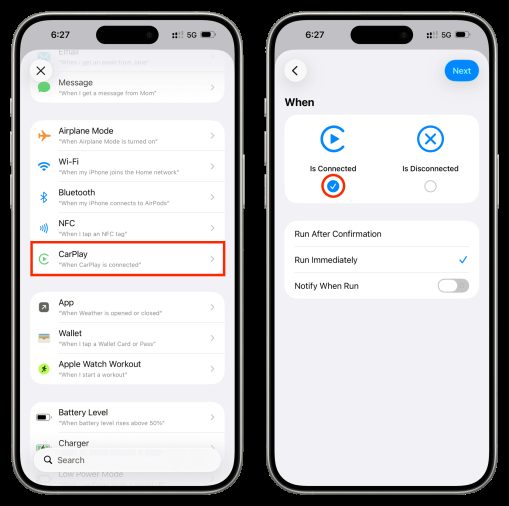
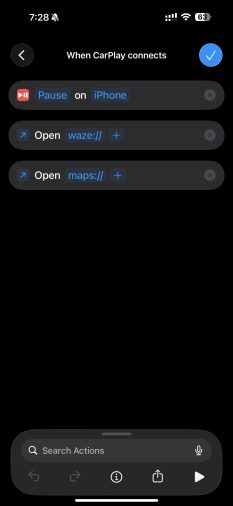
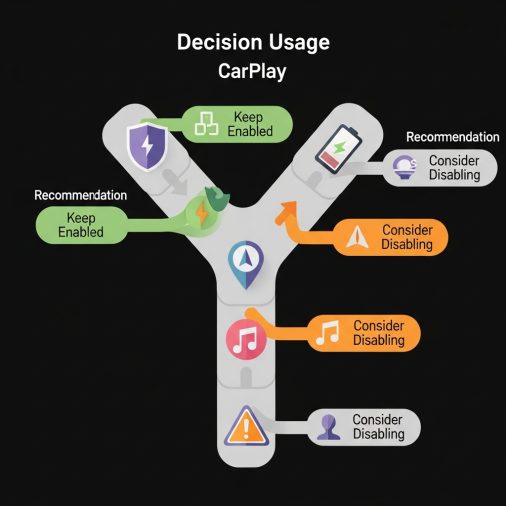
CarPlay adds its own layer of complexity. When your iPhone connects to a CarPlay-enabled system, the head unit essentially takes partial control of your phone’s audio session. Many CarPlay-integrated systems — particularly those in recent-model Toyota, Honda, GM, Ford, and Hyundai vehicles — are configured to request audio as part of the connection handshake.
In these cases, there is currently no official Apple setting that completely prevents CarPlay from triggering audio. The most effective workaround is using a podcast or navigation app as your last active session, or asking your car’s infotainment system to remain on a Radio or AM/FM input when CarPlay activates — if your head unit supports that behavior.
Some owners have found that switching the infotainment source to AM/FM before plugging in the iPhone via USB prevents the CarPlay session from immediately pushing audio to the car speakers.
Third-Party App Behavior vs. Apple Music
Spotify, in particular, has its own auto-play logic. Even if Apple Music is paused, Spotify can wake up and start playing when a Bluetooth audio device is connected — because it registers itself as an audio session handler. The same applies to Amazon Music and YouTube Music.
- To stop Spotify specifically:
- Open Spotify → Settings → Devices → Autoplay on this device (toggle off)
- Also disable “Autoplay similar songs” within the Spotify settings
These toggles address queue-based autoplay within the app, but the Bluetooth connection trigger is a separate behavior. Fully closing Spotify before leaving the car remains the most dependable fix.
Does iOS Version Affect This Behavior?
Yes. Apple has modified auto-play behavior across several iOS updates without always announcing it in release notes. iOS 14 and later introduced stricter audio session management, and some users report that updating to a newer iOS version changed (in either direction) how aggressively their iPhone resumes audio in the car.
If this problem started after a software update, check Apple’s support forums or community threads for your specific iOS version. In some cases, a subsequent iOS update has corrected unexpected auto-play behavior introduced in an earlier release.
Quick-Reference: Fix by Connection Type
| Connection Type | Most Likely Trigger | Best Fix |
|---|---|---|
| Bluetooth (no CarPlay) | Car sends AVRCP “play” command | Pause before disconnecting; force-quit app |
| USB with CarPlay | CarPlay handshake requests audio | Switch head unit to Radio before plugging in |
| Wireless CarPlay | CarPlay session initiates audio stream | Use non-music app as last session |
| Standard USB (no CarPlay) | iOS detects audio accessory | Force-quit all audio apps before connecting |
When Your Car’s Head Unit Is the Real Problem
In many cases, the iPhone isn’t the one initiating playback — the car is. Some factory and aftermarket head units are programmed to send a “play” command automatically whenever a Bluetooth device connects. This is particularly common in:
- Pioneer and Kenwood aftermarket receivers
- Older Honda, Toyota, and Subaru factory systems
- Any system running an older Bluetooth stack (pre-Bluetooth 5.0 firmware)
If you’ve tried every iOS setting and the problem persists, check whether your head unit has a firmware update available. Some aftermarket units, like those running Pioneer’s AVIC or DMH platform, allow you to disable the automatic play command in the unit’s Bluetooth settings menu.
FAQ
Why does my iPhone start playing music as soon as I start my car?
Your car’s Bluetooth or CarPlay system is sending an automatic “play” command to your iPhone when the connection is established. iOS obeys that command and resumes the last active audio app. The fix involves either pausing your audio before exiting the car, force-closing audio apps, or disabling auto-play within apps like Spotify or Apple Music.
How do I stop Spotify from automatically playing in my car?
Open Spotify, go to Settings, then Devices, and disable “Autoplay on this device.” You should also disable “Autoplay similar songs” within the playback settings. The most reliable additional step is fully closing the Spotify app before your phone disconnects from your car’s Bluetooth, which prevents it from being the active audio session on reconnection.
Why does my iPhone play music through Bluetooth but not through the car speakers when I choose radio?
When your phone is connected via Bluetooth and an audio app is active, iOS can override your head unit’s radio input. Most head units allow you to manually switch inputs — changing the source to AM/FM, SiriusXM, or another input should stop the Bluetooth audio from overriding the speaker system, though the Bluetooth connection itself will stay active.
Will turning off Bluetooth stop my iPhone from playing music automatically in my car?
Yes, disabling Bluetooth entirely prevents the connection trigger. However, this also disables hands-free calling. A more targeted solution is to pause or close audio apps before exiting the car, which stops auto-play without sacrificing phone call functionality.
Does Apple CarPlay always force music to start playing when I connect?
Not always, but many CarPlay-compatible vehicles are configured this way. The behavior depends on how the car manufacturer programmed the CarPlay handshake. Switching your head unit’s audio source to a non-Bluetooth input (like radio) before connecting the USB cable can prevent CarPlay from immediately pushing audio to the speakers on some systems.
My iPhone only started doing this after an iOS update — what changed?
Apple occasionally adjusts how iOS manages audio sessions during software updates, sometimes affecting auto-play behavior. If the issue started after a specific update, check Apple’s community forums for that iOS version. In some cases, Apple has issued subsequent updates that corrected unintended changes to Bluetooth audio behavior.
Can I make my iPhone default to a specific app when it connects to my car?
iOS doesn’t currently allow setting a universal default audio app for car connections. However, whichever audio app you use last (and leave paused rather than force-closed) tends to be the one iOS resumes. Consistently using one app and leaving it in a paused state — rather than switching between multiple audio apps — gives you the most predictable behavior.
The most practical fix for most drivers is a two-step habit: pause your audio before getting out of the car, and force-close any apps you don’t want to resume. If the problem is persistent regardless of iPhone settings, investigating your car head unit’s Bluetooth firmware or auto-play configuration is the logical next step — because in many vehicles, the car is the one sending the play command, not the iPhone.